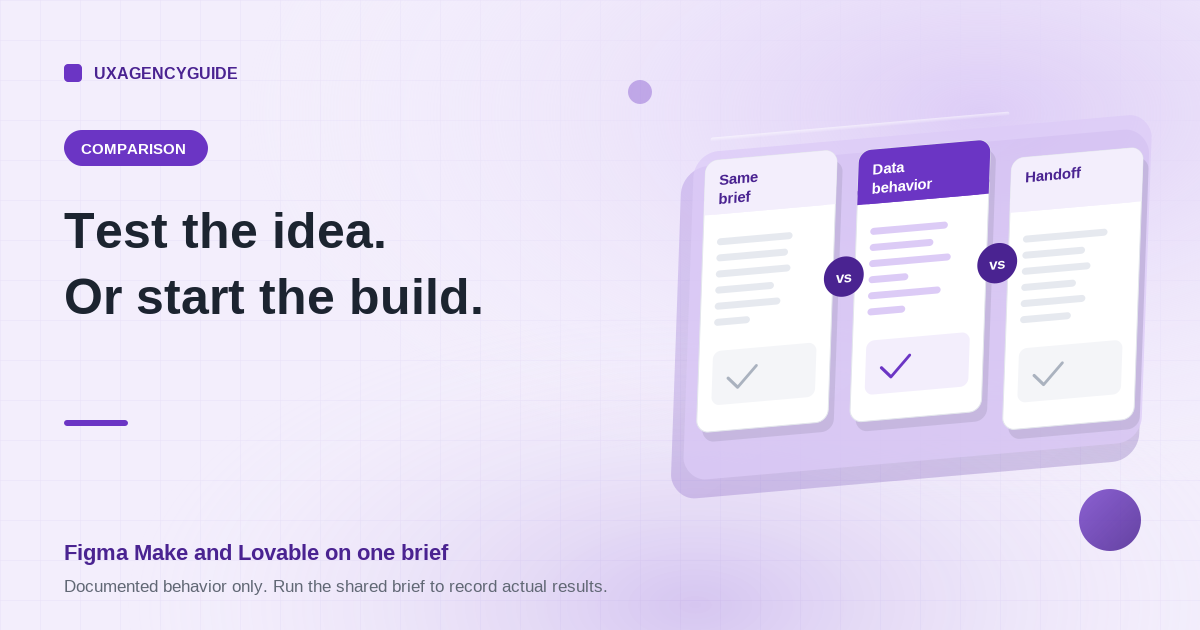
Choose Figma Make when you want to test an idea quickly and keep the result connected to your design work. Choose Lovable when you want a working application with data, sign-in and code you can take forward. Both turn prompts into functional prototypes, but they lead to different places: Figma Make back into design files and a published preview, Lovable into a code repository and a running app.
This comparison uses both products’ official documentation and pricing pages, checked in November 2026. We also give one shared brief and a record format so your team can try the same task in both and record what actually happens. For a wider comparison that includes v0, Bolt and Uizard, see our AI prototyping tools guide.
Define the job and test brief
The most important decision comes before choosing a tool: are you testing an idea or starting a build? Our comparison of proof of concept, prototype and MVP explains the difference. A prototype answers a question about whether people understand and value something. A build is the beginning of a product people will rely on.
Use the same brief for both tools:
Brief. Build a scheduling screen for a facilities dispatcher in a fictional product called Shiftboard. Show today’s jobs for four technicians. When a job is marked late, let the dispatcher move later jobs to another technician. Technicians see their updated list. Include an empty state, a loading state, an error state for a failed update and a permission state where a technician cannot reassign jobs. Save changes so they persist after a page reload.
The last sentence matters. Persistence separates a visual prototype from a working app, and it is where the two tools differ most.
Setup and iteration
Figma Make
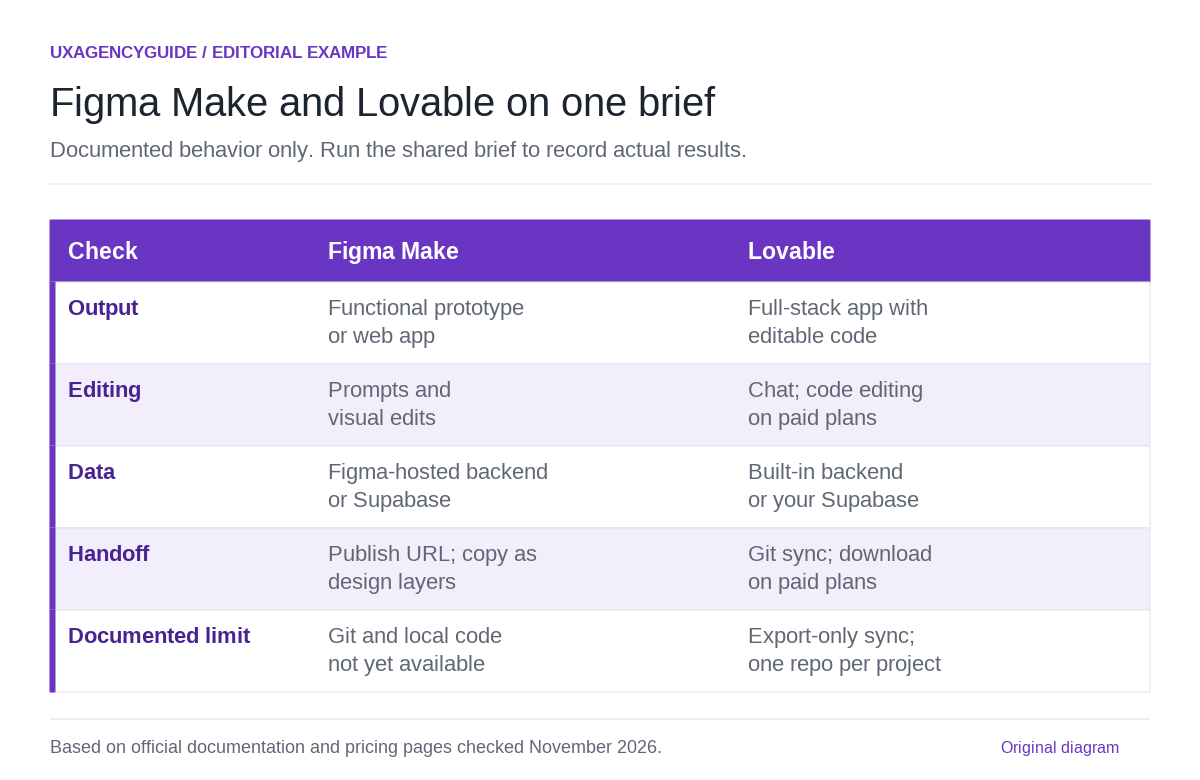
Figma’s Make page describes the output as code-backed and visually editable. You work from prompts, and the result can be refined with visual edits. Because Make sits within Figma, it suits teams whose designers already work there, and Figma’s pricing page shows that Make draws on AI credits shared across Figma’s AI features.
Lovable
Lovable’s documentation describes generating a working application with a frontend, backend, database, authentication and integrations, all backed by editable code. Work happens in a chat with separate planning and building modes. Code editing is available on paid plans.
What to record
For each tool, record the first output before any changes, then make a fixed number of follow-up edits. Note whether each edit was made by prompt, visual editing or code, and whether it changed anything you did not intend. Prompt-based editing is fast for broad changes but can be unpredictable for small ones, and the ease of precise edits often matters more than the quality of the first result.
Interaction and data behavior
This is where the brief’s persistence requirement separates the tools.
Figma Make. Figma’s help article on adding a backend documents a Figma-hosted backend with a database, file storage, authentication and an admin panel, and a manual connection to Supabase as an alternative. The same article notes that the hosted backend currently runs in the eastern United States. So Figma Make can persist data, but its data features sit within Figma’s environment.
Lovable. Lovable documents a built-in backend with a database, authentication, storage and functions, and a connection to your own Supabase project. Data persistence is central to how the tool works rather than an addition.
For both tools, check the states in the brief one by one. Generated prototypes usually show the successful path well and the empty, error and permission states less reliably. Ask for each missing state explicitly and record how many prompts it took.
Treat real data carefully
Before putting real customer or employee data into either tool, check where it is stored, who can access it and how to delete it. A prototype environment is rarely the right place for sensitive data. Use realistic but fictional data for testing.
Ownership and handoff
How the work leaves each tool determines what happens next.
Figma Make: back into design
Figma Make output can be published to a URL for sharing and testing, and copied back into Figma as design layers. For designers, that is a strong feature: a prototype explored with prompts becomes editable design work again. Figma’s backend article states that GitHub integration and local-codebase workflows are not yet available for Make apps with its hosted backend. That makes Figma Make better suited to exploring and testing than to handing a codebase to engineers today. Check current documentation, because Figma describes these features as coming.
Lovable: forward into code
Lovable’s Git sync documentation describes two-way sync with GitHub, GitLab or Bitbucket on all plans, working on one branch at a time. It notes that sync is export only, meaning you cannot import an existing repository, and that each project connects to one repository. Code download is available on paid plans. That makes Lovable a plausible starting point for a build, provided engineers review and take ownership of the code.
Who owns the result
In both cases, decide early who owns the prototype after testing. If it will be thrown away after a round of research, ownership is simple. If it will become the start of a product, engineering needs to review the code, the data model and the security approach before anything is built on top of it. CorLab Tech’s MVP development page, from an engineering firm, emphasizes client ownership of the code from the first commit; whichever tool you use, make code ownership an explicit decision rather than an accident of the prototype.
Current plans and restrictions
| Figma Make | Lovable | |
|---|---|---|
| Inputs | Prompts, voice, Figma designs, images, PDFs and data files | Chat prompts |
| Output | Functional prototypes and web apps; can be copied back to Figma as layers | Full web apps and websites |
| Backend | Built-in Payload backend for data, sign-in and files; Supabase connection | Built-in Cloud backend with a database and sign-in |
| Code | Generated Payload and Next.js code inside the project | Git sync (GitHub, GitLab, Bitbucket) on every plan; code editing and download on Pro |
| Publishing | Figma-hosted link; custom domains for web apps; Full seat to publish on paid plans | Hosting included; custom domains on Pro |
| Free plan | Starter: 150 AI credits a day, up to 500 a month | 5 build credits a day, up to 30 a month |
| Entry paid plan | Professional Full seat $16 per month, with 3,000 AI credits | Pro from $25 per month, or $21 a month billed yearly |
Prices are in US dollars as shown on each vendor’s own pricing page on 23 November 2026. Billing periods and plan names change often, so check the current page before buying.
Prices and allowances in this category change often. These figures were checked on 20 November 2026.
Figma. The Starter plan is free with 150 AI credits per day and up to 500 per month. A Professional full seat is listed at $16 per month with 3,000 AI credits. Figma notes that AI credits are shared across its AI features and that included credits are subject to change.
Lovable. According to its subscription plans page, the free plan includes five credits a day, capped at 30 a month, and free publishing is limited to up to ten people per project. Pro starts at $25 per month for 100 credits, and Business at $50 per month. Prices are in US dollars. Code editing and code download require Pro or above.
Both tools charge for usage rather than results. Failed attempts and repeated fixes consume credits, so budget for iteration and record actual consumption when you run the brief.
Running the brief in practice
A fair comparison needs the same conditions for both tools. A simple session plan keeps the results honest.
Who takes part. Ideally two people: someone who will use the prototype for research (often a designer) and someone who will judge the code and data (often an engineer). Their views of the same output often differ, and both matter.
How long. Allow the same time for each tool, for example ninety minutes, including the first prompt, follow-up edits and the handoff check. Stop when time runs out and record where you got to.
What to capture. Screenshots of the first output, each significant change and the final state. A note of every prompt and edit, with whether it did what you intended. Credits used at the start and end. Any error messages or moments where the tool could not do what you asked.
What to check after. Reload the prototype to confirm data persists. Open it on a phone. Ask a colleague who was not in the session to complete the brief’s task without help. Look at the exported code or design layers and judge whether your team could work with them.
How to compare. Fill in the record table below for each tool, then discuss the differences rather than adding up scores. A tool that did slightly worse on the first output but much better on precise edits may be the better choice for real projects.
Run the brief again when either tool releases a significant update. Both products are changing quickly, and a decision that was right this quarter may not be next year.
Which workflow fits the task
| If you need to | Lean toward | Watch for |
|---|---|---|
| Test whether people understand a flow | Figma Make | Whether all required states exist |
| Keep prototypes connected to design files | Figma Make | Code handoff not yet available for hosted apps |
| Test with persistent data and sign-in | Lovable | Where test data is stored |
| Start a codebase engineers will own | Lovable | Code review, security and repository limits |
| Share with many testers on a free plan | Check limits for both | Lovable limits free publishing to ten people per project |
When neither tool is enough
Some prototypes need real integrations, careful AI behavior or research planning that a tool alone will not provide. Cieden’s AI prototyping service describes building proof-of-concept apps with real functionality rather than static mockups, along with an architecture blueprint for production. That is the kind of support teams use when a prototype must prove technical feasibility as well as usability. Neither Cieden nor CorLab Tech is cited here as using or endorsing either tool.
Always test with people
Whichever tool you choose, a generated prototype is a faster route to something testable, not evidence that the design works. Put it in front of three to five representative users with realistic tasks, and record what they do. Our wireframe, mockup and prototype comparison explains how to match prototype fidelity to the question you are testing.
A simple record for both tools
| Check | Figma Make | Lovable |
|---|---|---|
| First output matches the brief | ||
| All required states present | ||
| Changes persist after reload | ||
| Precise edits possible | ||
| Handoff in the form we need | ||
| Credits used for the task | ||
| Users completed the task |
Fill it in during your session. It will give you a choice based on your own evidence, and a baseline to compare against when either tool changes.
Whichever tool you choose, keep the brief and the completed records together with the prototype. When the team revisits the decision, or a new person joins, those records explain what was tested, what was found and why one workflow was chosen over the other.
Frequently asked questions
Is Figma Make or Lovable better for prototyping?
Figma Make suits teams who want a functional prototype that stays close to their Figma design work, since its previews can be copied back as design layers. Lovable suits teams who want a working app with a database, sign-in and editable code from the start. The better choice depends on whether you are testing an idea or starting a build.
Can I export code from Figma Make?
Figma’s documentation, checked in November 2026, says GitHub integration and local-codebase workflows are not yet available for Figma Make apps with its hosted backend. You can publish to a URL and copy previews as design layers. Check Figma’s current documentation, as this is changing.
Can Lovable output be used in production?
Lovable generates editable code and supports Git sync, so its output can become the starting point of a product. Treat generated code as a draft: review it for security, data handling, accessibility and maintainability before real users rely on it.
How did you compare Figma Make and Lovable?
We compared both tools using their official documentation and pricing pages, checked on 23 November 2026, against one shared brief. The guide includes a record format so your team can run the same task in both tools and compare the results.
Sources & evidence
- Figma MakeChecked 2026-11-20
- Figma pricingChecked 2026-11-20
- Add a backend to a functional prototype or web appChecked 2026-11-20
- Lovable documentationChecked 2026-11-20
- Lovable subscription plansChecked 2026-11-20
- Lovable Git sync overviewChecked 2026-11-20
- AI prototyping serviceChecked 2026-11-20
- MVP development for startupsChecked 2026-11-20
- Publish a Figma Make fileChecked 2026-11-23
- Lovable plans and creditsChecked 2026-11-23
Specific sources, useful examples and clear limitations make advice easier to assess.
Read the editorial policy